Team members
Add people to your About or Team page, with a photo, position, social links, and a profile page for each.
The Team Members post type holds your staff or team profiles: each person gets a photo, position, social links, and their own profile page.
Where to find it: Go to Team MembersAdd New Team Member.
Team Members only appears in the admin menu while the module is turned on in Theme Options > Modules.
Add a team member
Create the profile
Go to Team MembersAdd New Team Member. Enter the person's name as the title, and set a Featured Image, which Highend uses as the member's photo, at a suggested 360×360px (1:1 ratio).
Fill in their details
Use the content editor for their bio. Below it, open the Team Member tab of the Highend Settings box and fill in the person's Position and any social links there.
Assign a category
Use the Team Categories panel in the sidebar if you want to group members (by department, for example) for the Team Members Carousel element.
Team Member tab
hb_employee_positionThe person's job title, shown under their name.
Below that is one text field per social network: enter a full profile URL (or, for Email Address, an email address) and Highend shows an icon that links to it. Leave a field empty to skip that icon. Available networks, in order: Email Address, Dribbble, Facebook, Flickr, Forrst, Google Plus, HTML 5, iCloud, LastFM, LinkedIn, PayPal, Pinterest, Reddit, RSS, Skype, StumbleUpon, Tumblr, X (Twitter), Vimeo, WordPress, Yahoo, YouTube, GitHub, Yelp, Contact Page Link (a mail icon that links to a URL, such as your contact page), Instagram, Foursquare, Xing, VKontakte, Behance, 500px, Weibo, Tripadvisor, TikTok, Bluesky, Threads, and Calendly.
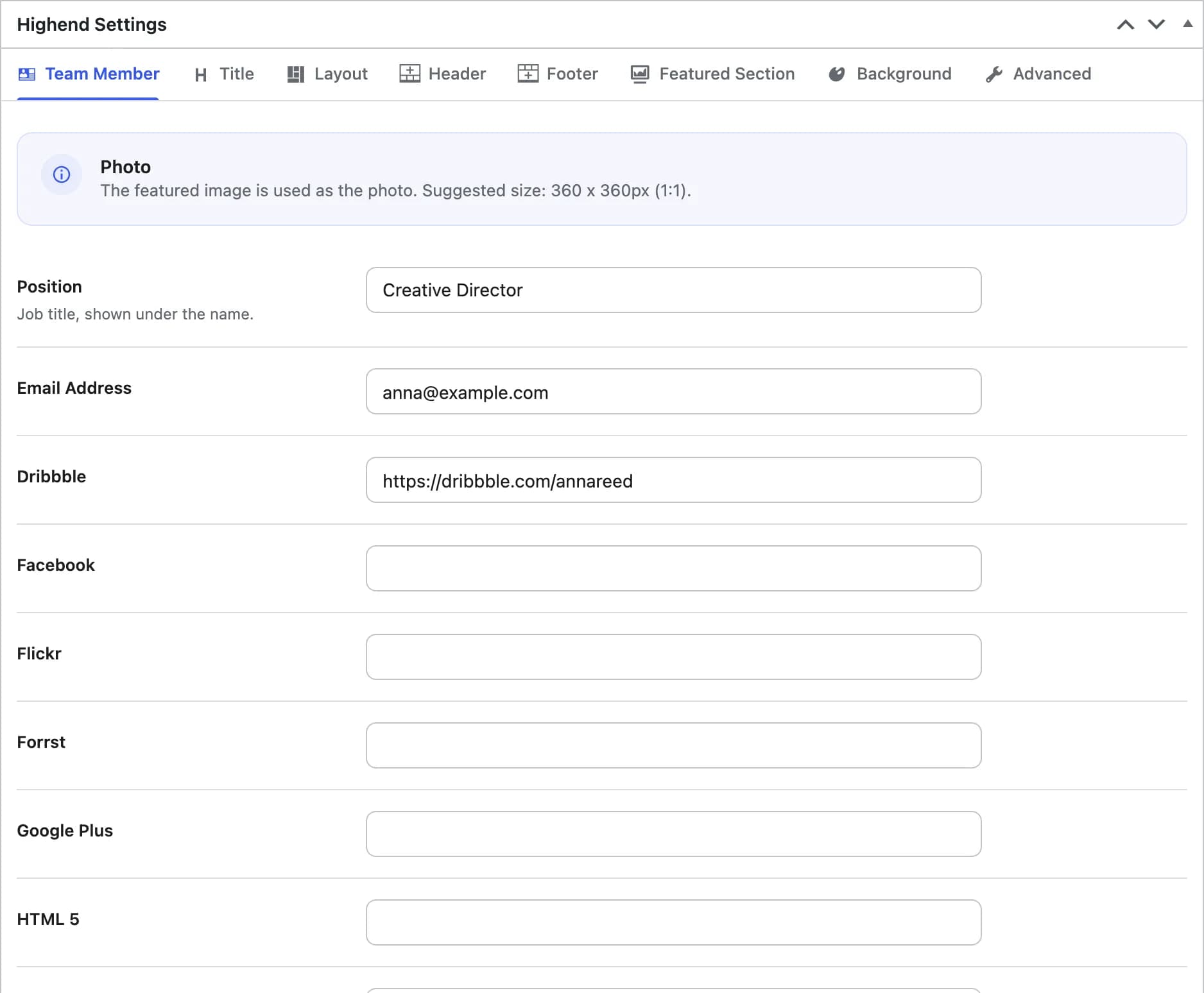
Google Plus shut down in 2019 and Forrst is defunct, so filling in those fields just links to a dead page. They're listed here because they're still in the theme's field list.
Layout tab
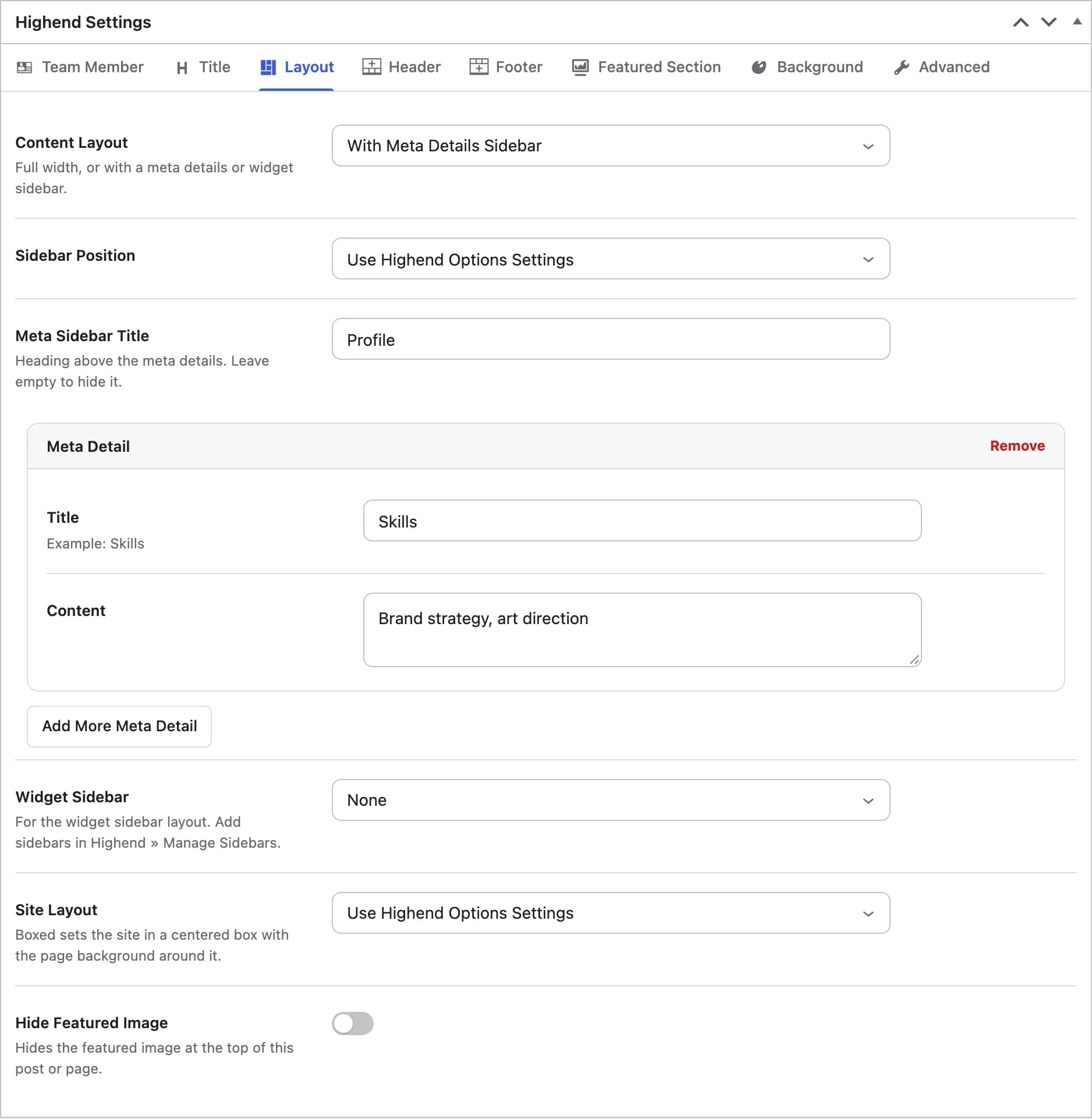
The member's profile page layout. These fields come first in the Layout tab, followed by Site Layout and Hide Featured Image (see Page settings).
Use Highend Options Settingshb_portfolio_content_layoutFullwidth, With Meta Details Sidebar, or With Widget Area Sidebar for this member's profile page.
Use Highend Options Settingshb_portfolio_sidebar_positionLeft Sidebar or Right Sidebar. Shown when Content Layout is set to With Meta Details Sidebar or With Widget Area Sidebar.
hb_meta_sidebar_titleHeading above the meta details. Leave empty to hide it. Used when Content Layout is With Meta Details Sidebar; this field stays visible in the editor either way.
hb_meta_detailsTitle and Content pairs (for example, Skills) shown as an accordion in the meta details sidebar. Used when Content Layout is With Meta Details Sidebar; this field stays visible in the editor either way.
Nonehb_choose_sidebarWhich sidebar to show. Used when Content Layout is With Widget Area Sidebar; this field stays visible in the editor either way. Add sidebars in HighendManage Sidebars.
Other tabs
Team members also get the Title, Header, Footer, Background and Advanced tabs shared with pages, plus the Featured Section tab, which works the same way as on pages: an image, video, or slider above the content. See Page settings. They don't get the page Sidebar Layout, Content Area, Top Bar, Footer Widgets or Pre-Footer Callout settings: the Layout tab fields above replace them.
Single team member pages
A member's page shows their photo next to their bio, plus their position and social icons in whichever sidebar layout you chose above. If More Members is on in Theme Options > Team, Highend adds up to four more members sharing a category under Meet More Team Members.
Elements that display team members
Team Members Box
One or more member profiles as static boxes in a grid.
Team Members Carousel
A sliding carousel of team member profiles.