Import a demo
Start from one of Highend's 17 prebuilt websites and replace the content with your own.
Highend ships with 17 complete demo websites. Importing one adds its pages, media, menus, and settings to your site, so you start from a finished design instead of a blank one.
Where to find it: Go to HighendImport Demos.
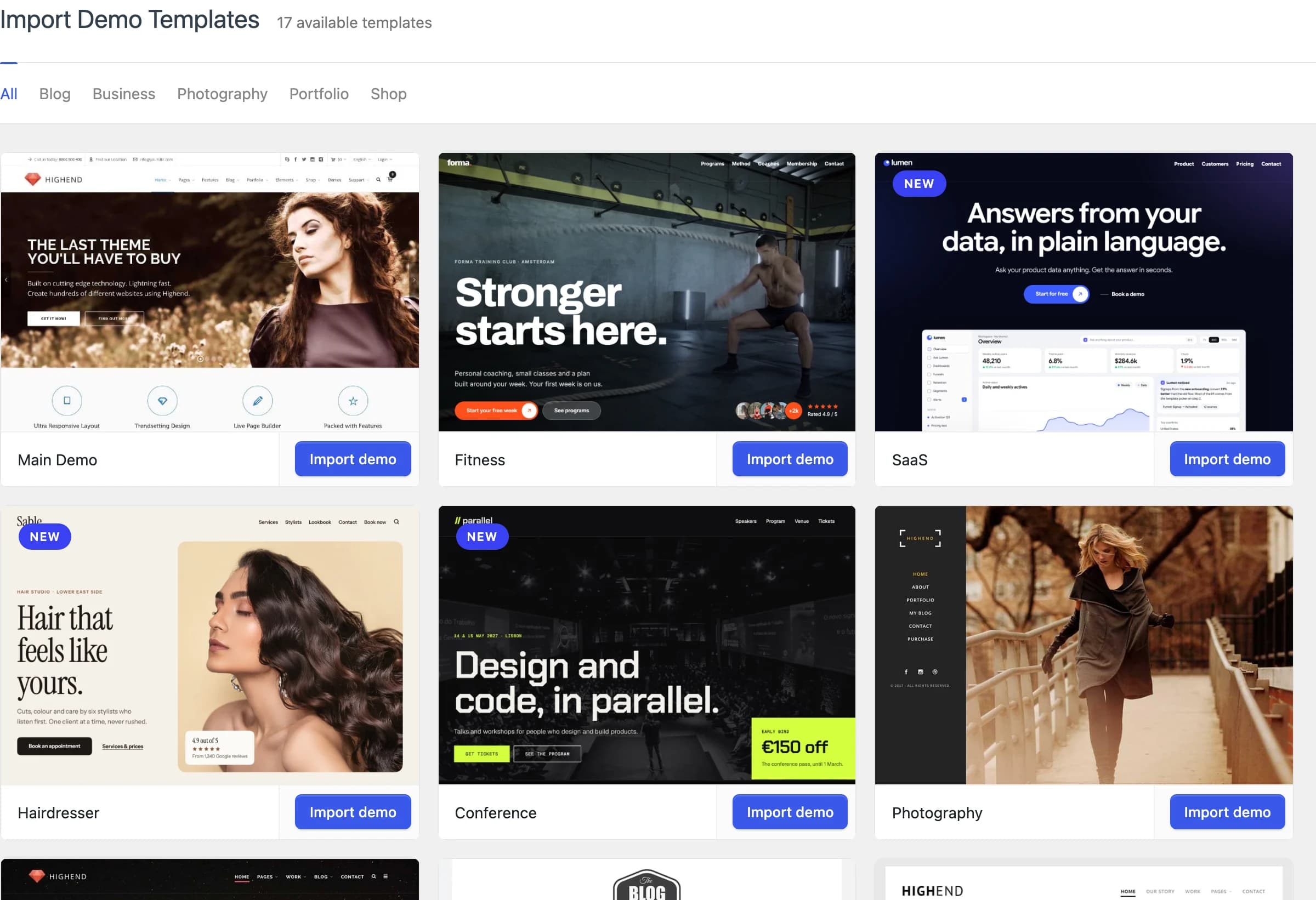 17 demos across Blog, Business, Photography, Portfolio, and Shop.
Demo import is a licensed feature. Activate your license on the Theme License page first, or each demo shows Invalid license instead of an import button.
The 17 demos
Filter by category (Blog, Business, Photography, Portfolio, or Shop) or browse All. Every demo needs WPBakery; most also need Slider Revolution, several need Essential Grid or WooCommerce, and Hairdresser needs Contact Form 7.
| Demo | Categories | Plugins it needs beyond WPBakery |
|---|---|---|
| Main Demo | Business, Blog, Photography, Portfolio, Shop | Slider Revolution, WooCommerce |
| Fitness | Business | None |
| SaaS | Business | None |
| Hairdresser | Business | Contact Form 7 |
| Conference | Business | None |
| Photography | Portfolio, Photography | Slider Revolution, Essential Grid |
| Presentation | Business, Blog, Portfolio | Slider Revolution, Essential Grid |
| Simple Blog | Shop, Blog | Essential Grid |
| Minimal | Portfolio, Blog | Slider Revolution, Essential Grid |
| Café | Business | Slider Revolution |
| Jasper | Portfolio, Photography | Essential Grid |
| Church | Business | Slider Revolution |
| Landing/Startup | Business | None |
| Life Coach | Business, Blog | Slider Revolution |
| Bloggera | Shop, Blog | Slider Revolution, WooCommerce |
| Online Shop | Shop, Business | Slider Revolution, WooCommerce |
| Corporate / One Page | Business | Slider Revolution |
Each demo's card in the admin also shows its own Required plugins section with live Install or Activate buttons, so you don't have to cross-reference this table before you start.
What gets imported
Click a demo, then click its Import demo button to open the import dialog. It lists the demo's required plugins and a What to import checklist you can narrow before importing:
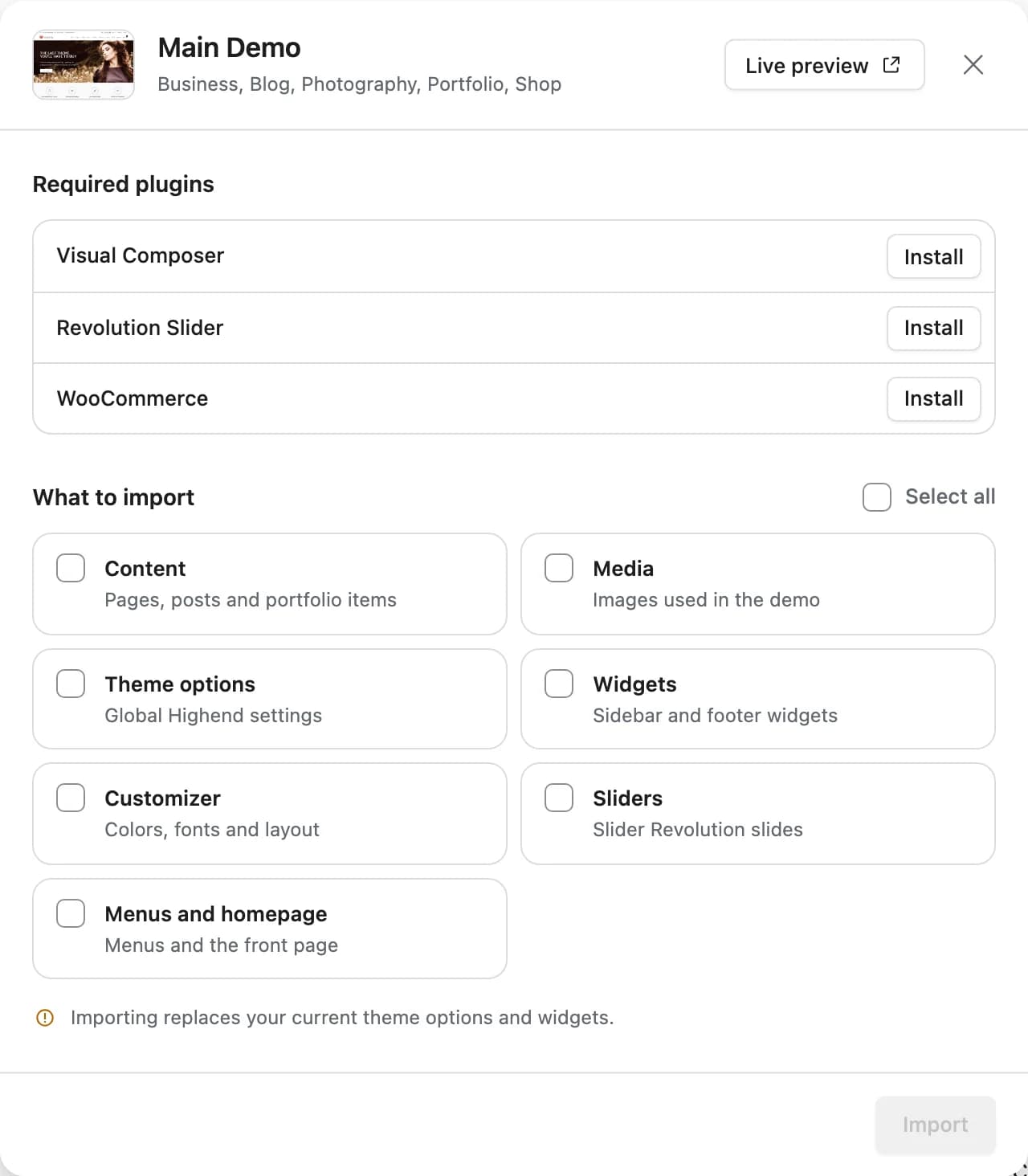 Content, media, theme options, widgets, customizer settings, sliders, and menus/homepage are each optional.
- Content: pages, posts, and portfolio items.
- Media: the images used in the demo, sideloaded into your Media Library.
- Theme options: the demo's global Highend Options settings.
- Widgets: sidebar and footer widgets (only shown for demos with sidebars).
- Customizer: colors, fonts, and layout set through the Customizer.
- Sliders: Slider Revolution slides.
- Essential Grid: portfolio and blog grids (only shown for demos that use it).
- Menus and homepage: the demo's menus and its front page.
Theme options and widgets you import overwrite your site's current ones. If you've already customized either, uncheck them in the checklist or back up your site first.
Import a demo
Install and activate its required plugins
Open the demo's card and install anything listed under Required plugins that isn't already active. See Install plugins.
Choose what to import
Click Import demo, then check the content, media, and settings you want. Use Select all for a complete copy of the demo.
Start the import and wait
Click Import. Highend works through the checked items in stages (content, then media, then the rest), showing progress as it goes. Larger demos with a lot of images take the longest; keep the tab open until it finishes.
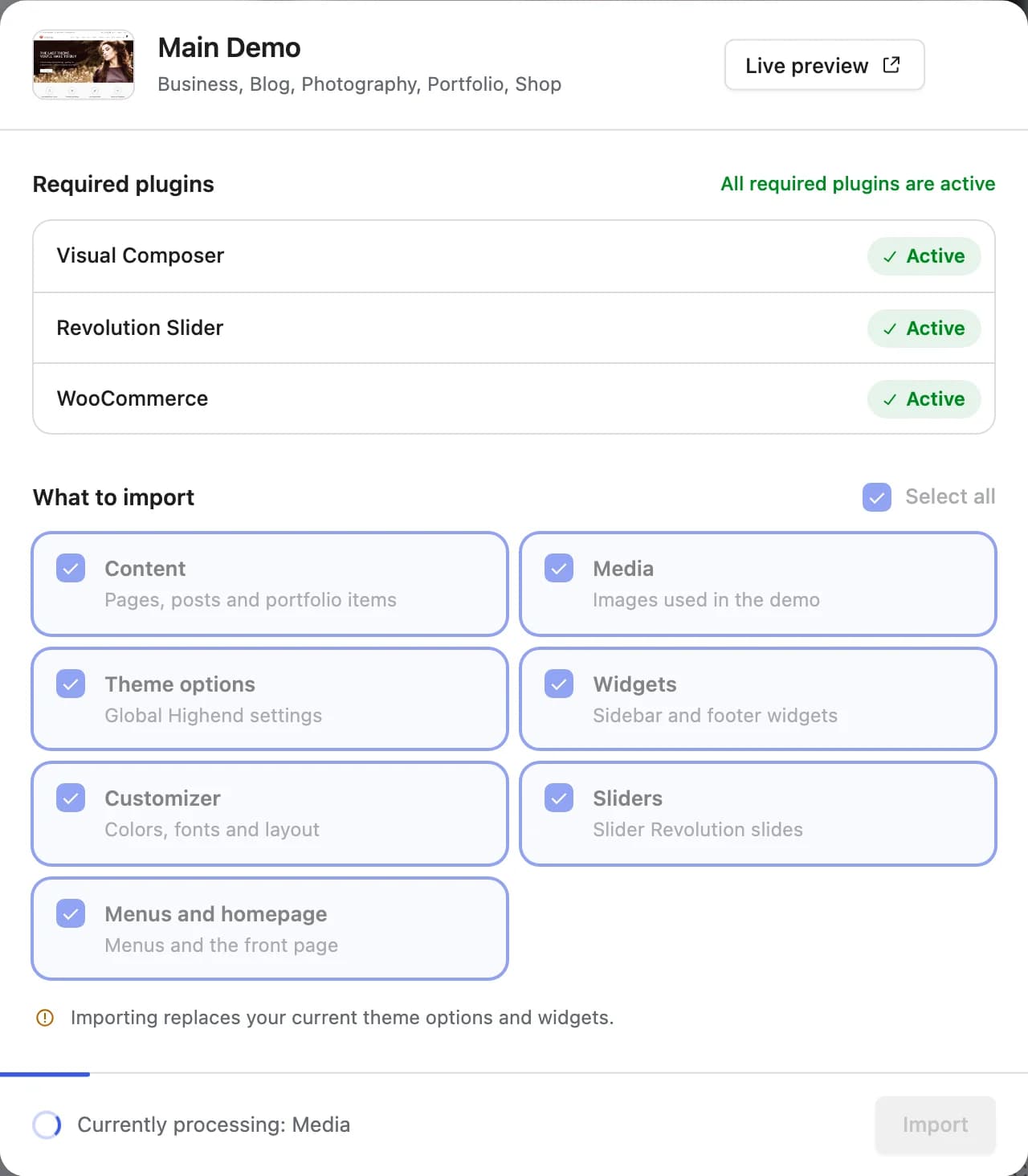 The status bar shows which stage is running.
Review your site
When it finishes, visit your site and check the pages, menus, and homepage. Replace demo images, text, and contact details with your own.
Troubleshooting
Highend raises the PHP execution time limit and memory limit for the duration of the import, but some hosts cap these regardless. If the import stalls or times out, refresh the page and try again. The confirmation dialog offers a Retry. If it keeps happening, ask your host to raise max_execution_time and memory_limit for your site, or import fewer items at once (start with Content and Media, then import the rest separately).
If a handful of images fail to download during the media step, Highend still finishes the import and tells you which ones were skipped. Add those images manually from the Media Library afterward. The rest of your content, settings, and layout import normally.
This means your license isn't active. Activate it on the Theme License page. Missing required plugins don't block the button itself; the import still runs, but content that needs a plugin you haven't installed (a slider, a grid) won't show correctly until you install and activate it. Check the Required plugins list on the demo's card and install anything missing, ideally before you import.