Contact Form 7
Highend styles Contact Form 7's default markup, plus two optional form styles you apply with a CSS class.
Contact Form 7 needs no configuration to work with Highend: its default form markup is already styled to match the theme, and two optional class-based styles are available for a different look.
Where to find it: Go to HighendInstall Plugins to install Contact Form 7, then ContactAdd New to build a form.
Add a form to a page
WPBakery has its own Contact Form 7 element in the Add Element dialog. Drop it into a row or column and pick your form from the dropdown. You can also paste a form's shortcode (shown on its edit screen, for example [contact-form-7 id="10" title="Contact form 1"]) directly into a Text Block.
A modern look with Styled Contact Form
For roomy fields, a solid button and your own colors without writing CSS, use the Styled Contact Form element. Pick your form from a dropdown, then choose a field style (Filled, Outline, or Underline), the corner roundness and colors. It also lets you put fields side by side with a small wrapper in the form. Only the form inside the element is restyled, so your other forms keep their look.
Two optional form styles
Highend includes CSS for two alternate form styles, switched on by wrapping the shortcode in a <div> with one of these classes, or by adding the class as the wrapping row or column's Extra class name if you'd rather not hand-edit HTML:
hb-fancy-form: bordered fields with bold, uppercase, letter-spaced placeholder text, and a full-width bordered submit button.
<div class="hb-fancy-form">[contact-form-7 id="10" title="Contact form 1"]</div>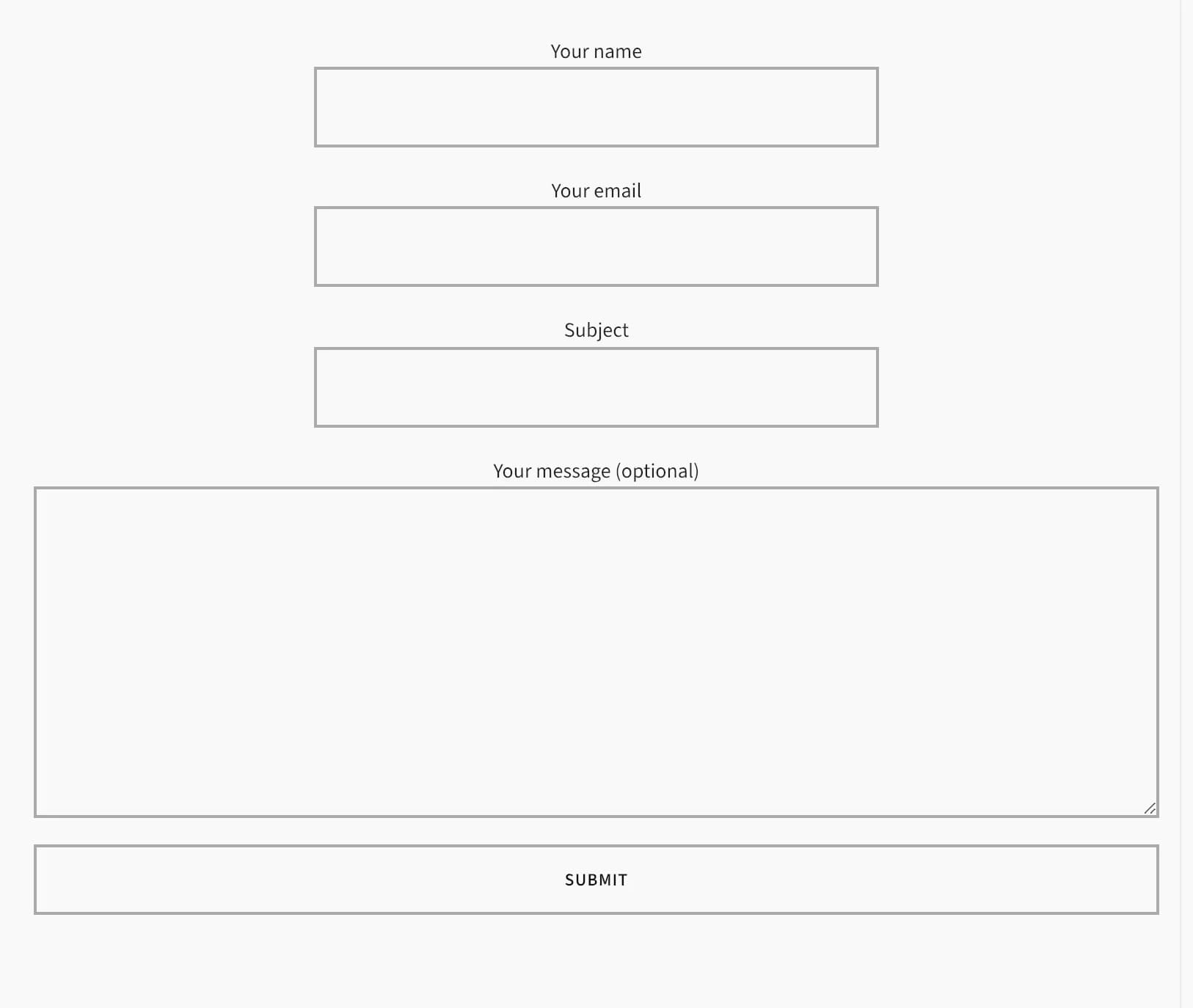
Leave the wrapper off and the form keeps Contact Form 7's markup with Highend's baseline field and validation styling: bordered inputs, a colored outline on invalid fields, and a styled success/error message.
Contact Template vs. Contact Form 7
Highend's built-in Contact Template page template is a separate thing entirely: a simpler, built-in quick-contact form (name, email, subject, message) with its own details box and map or image background, with no Contact Form 7 dependency. If you use that template, that's the form visitors see; if you want a Contact Form 7 form instead, build the page on the default template and place your form with WPBakery as described above. See Page templates for the Contact Template's own settings.