WPBakery Page Builder
WPBakery is the required, bundled page builder every Highend element and demo layout is built with.
WPBakery Page Builder (formerly Visual Composer) is bundled with Highend and required: it's what every Highend element, page template, and prebuilt demo is built with. You don't install it separately from WordPress.org; it comes from HB-Themes and is installed like the theme's other bundled plugins.
Where to find it: Go to HighendInstall Plugins to install or update it, then edit any page or post to start building with it.
Bundled and required
WPBakery is marked required in Highend's plugin list. Like the theme's other premium plugins (Slider Revolution, LayerSlider, Essential Grid), it's included with your Highend license (no separate WPBakery license is needed), and installing or updating it just needs your Highend license to be active. See Install plugins and Theme License for the install flow and why the license is checked. It's downloaded from HB-Themes' own plugin repository, not the WordPress.org plugin directory, so its updates also come through Highend rather than the regular WordPress "Plugins" update list.
Because WPBakery is included with the theme, Highend tells it so (vc_set_as_theme()), and WPBakery's own activation prompts are hidden from your admin screens. Buying a license directly from a plugin's developer is optional: it only unlocks extras such as the plugin's own template library.
Backend, frontend, or Gutenberg
Open any page or post and you'll see a row of buttons above the content area for how you want to edit it:
- Classic Mode (labelled Backend Editor in WPBakery's own docs): build the page with rows, columns, and elements directly in wp-admin. This is what most of the theme's demo content uses.
- Frontend Editor: edit the same content overlaid on the actual live page, so you can see real styling as you build.
- Gutenberg Editor: switch to the WordPress block editor instead, where the whole page becomes a single WPBakery block.
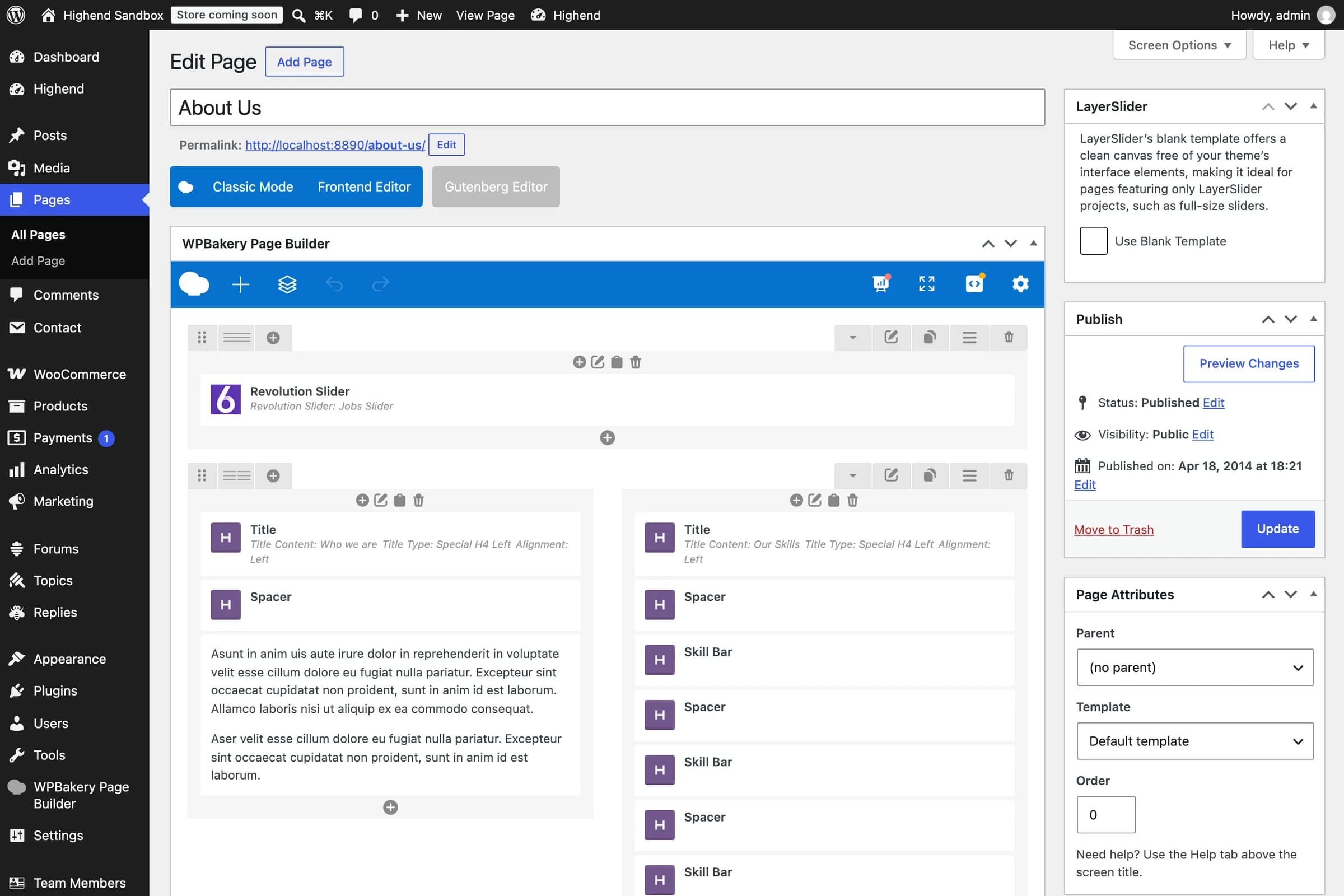
Where Highend's elements appear
Click the + (Add Element) button inside any row to open the element picker. Highend's own elements are grouped under the Highend Shortcodes tab, separate from WPBakery's native VC Shortcodes and Content tabs. This is what the Elements documentation covers. See Elements for every one of them.
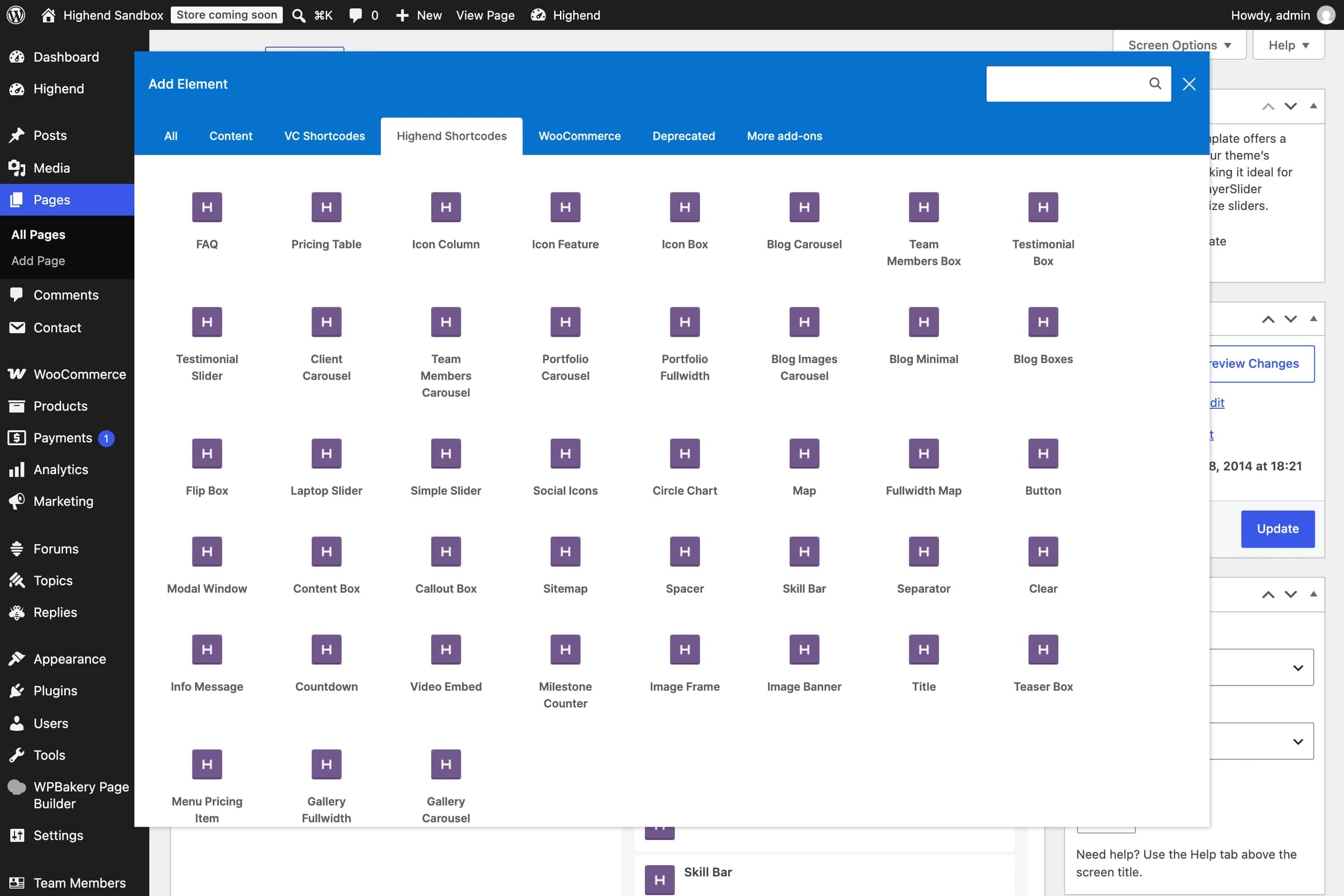
A Deprecated tab also appears here. It holds a couple of older Highend elements (the original Fullwidth Section and One Page Section shortcodes) kept for backward compatibility with content built on earlier theme versions. Don't use them for new content; see Full-width and edge-to-edge sections and Build a one-page site for the current way to do both.
What else Highend changes
A few small integration details, in case you're debugging unexpected markup or admin behavior:
- Highend removes several native WPBakery elements that just wrap core WordPress widgets (categories, custom menu, links, meta, pages, recent posts, recent comments, RSS, search, tag cloud, text, calendar, archives, and the old Google Maps element); they're redundant next to Highend's own widgets and elements.
- It also renames a couple of internal CSS classes WPBakery outputs (
vc_row-fluidbecomesrow,wpb_rowbecomeselement-row) so rows and columns line up with the rest of the theme's grid CSS.