Set up side navigation
Replace the top header with a fixed vertical panel that holds your logo, navigation, and social links.
Side navigation is one of Highend's four main header layouts. Instead of a horizontal bar across the top of the page, your logo and menu sit in a fixed panel down the side of the screen, and the page content runs alongside it. It's a site-wide layout choice, not something you turn on for a single page.
Turn it on
Open Header Layout
Go to HighendHighend OptionsLayout SettingsHeader Layout.
Choose Side Navigation
Under Main Header Layout, select the fourth thumbnail, Side Navigation, then Save changes.
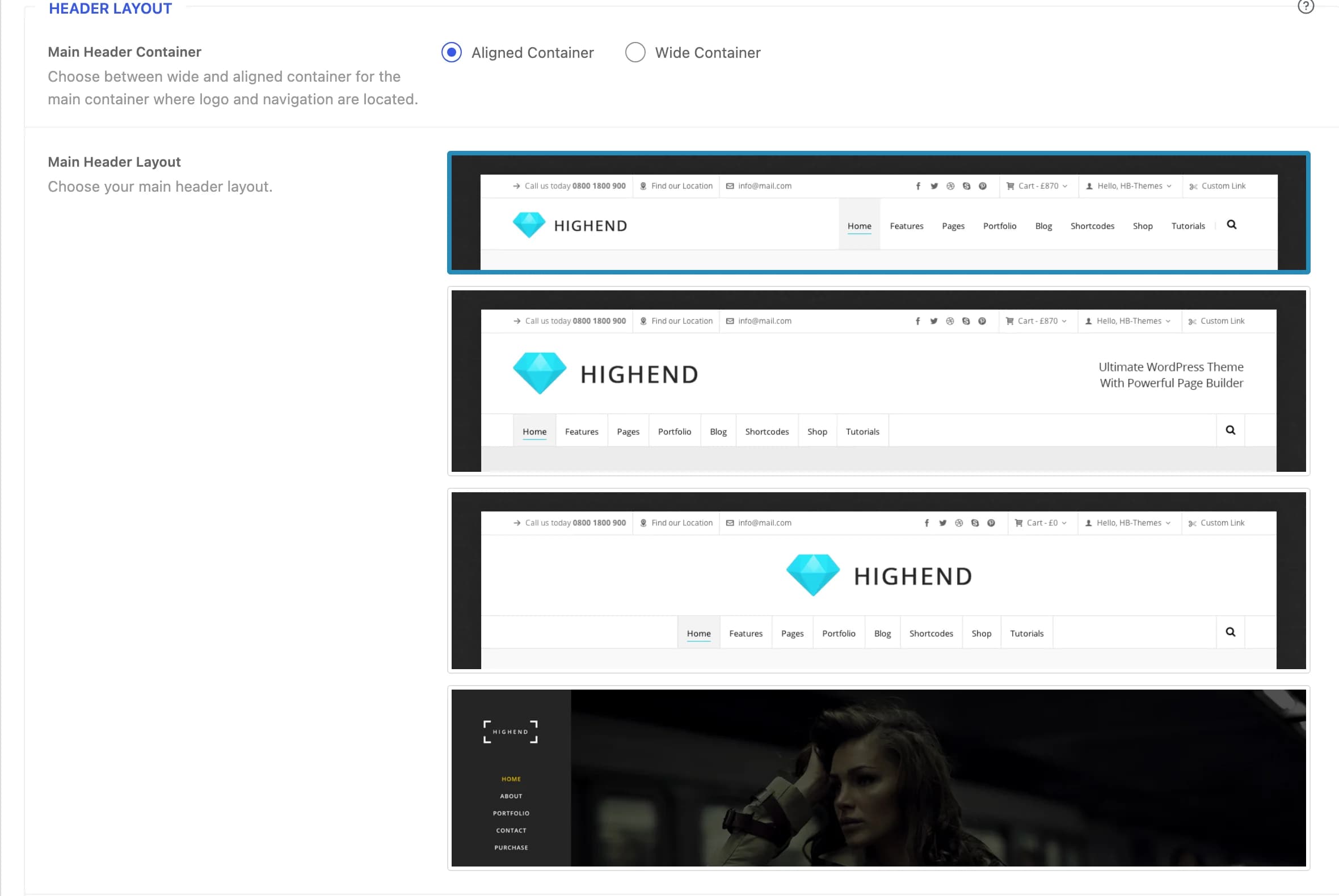
Selecting Side Navigation replaces the regular header entirely: the top bar and the Type 1/2/3 header layouts no longer render anywhere on the site.
Configure the panel
Once Side Navigation is selected, a Side Panel Navigation Options section appears on the same tab.
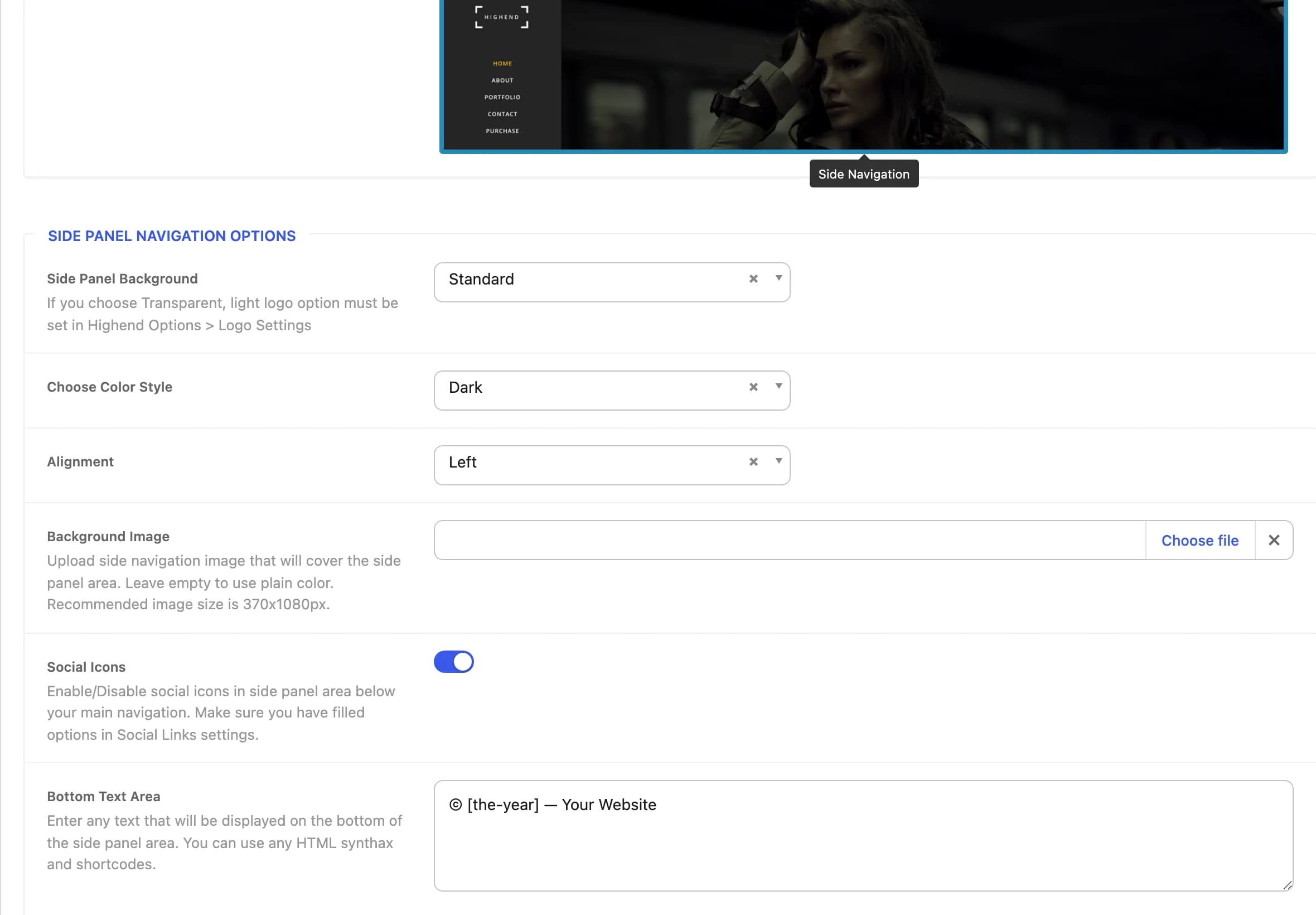
Standardhb_side_nav_styleStandard or Transparent (standard on scroll). If you choose Transparent, also set a light logo under HighendHighend OptionsLogo Settings.
Darkhb_side_color_styleLight or Dark text and icon colors for the panel.
Lefthb_side_nav_alignAligns the logo and menu text inside the panel: Left, Center, or Right.
hb_side_nav_bgCovers the panel with an image instead of a plain color. Recommended size is 370×1080px. Leave empty to use a plain color.
Onhb_side_nav_enable_socialsShows your social icons below the main navigation. Fill in Highend OptionsSocial Links first.
hb_side_nav_bottom_textText shown at the bottom of the panel, such as a copyright line. Accepts HTML and shortcodes.
Offhb_side_nav_with_animationAnimates the logo, menu, and social icons in when the page loads.
The panel pulls its menu from the Main Menu location you've assigned under AppearanceMenus, the same menu location the regular header uses. If a page has one-page navigation enabled, the panel uses the One Page Menu location instead.
Keep one page on the regular header
To exempt a single page from the site-wide side navigation, open the Header tab of that page's Highend Settings box and turn on Special Header. The page then renders with the regular Type 1 header instead, regardless of the global Header Layout setting. The header sits transparent over the content, and the page has no title bar.