Pricing Tables
Build pricing tables with the Pricing Tables post type, then drop them into a page with the Pricing Table element.
Pricing Tables is a custom post type for building a set of pricing plans: one Pricing Table item can hold several columns (Starter, Pro, Enterprise, and so on), which you then place on a page with the Pricing Table element.
Where to find it: Go to Pricing TablesAdd New Pricing Table.
Pricing Tables is one of Highend's optional modules. If you don't see it in the admin menu, enable it under HighendHighend OptionsHighend Modules. See Modules.
Pricing Table items don't support the content editor or a featured image (everything lives in the repeatable plans below), and they have no public single page. You build the whole table here, then display it with the Pricing Table element.
Add a pricing table
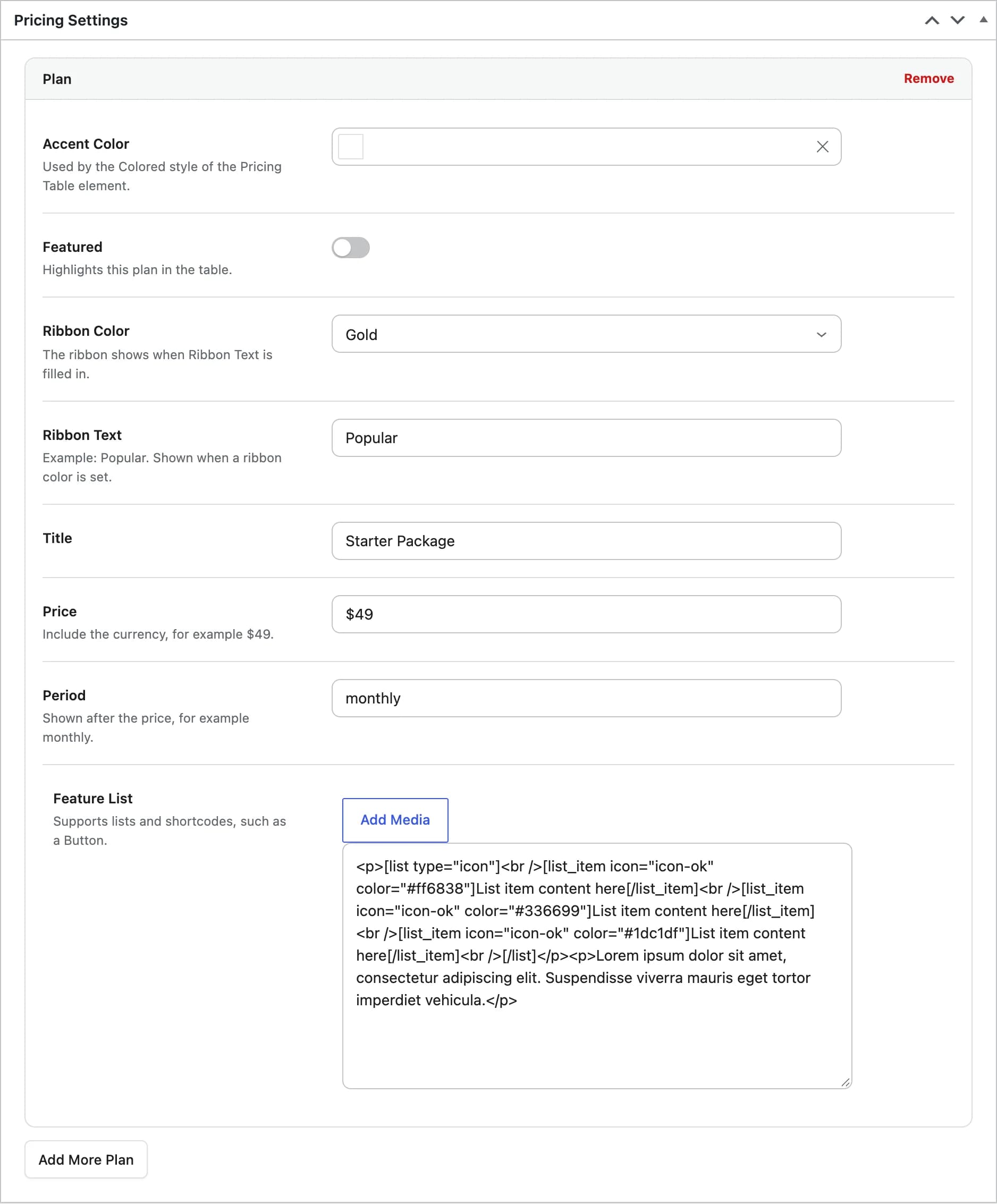
Go to Pricing TablesAdd New Pricing Table. The title is for your reference in the admin list only. Everything else happens in the Pricing Settings box's repeatable Plan group: add one entry per plan (one column of the table). Drag plans to reorder them.
hb_pricing_colorAn accent color for this plan. Used by the Colored style of the Pricing Table element.
Offhb_pricing_featuredHighlights this plan in the table. Pair it with a ribbon.
Nonehb_pricing_ribbonNone, Gold, or Blue: a small corner ribbon on this plan.
hb_pricing_featured_ribbonThe ribbon's text, for example Popular. The ribbon only shows when Ribbon Color is Gold or Blue and this field is filled in.
Starter Packagehb_pricing_titleThe plan name.
$49hb_pricing_priceInclude your own currency symbol: it's printed as entered.
monthlyhb_pricing_periodShown after the price, for example monthly or yearly.
hb_pricing_feature_listThe plan's body content. It supports lists and shortcodes, and comes pre-filled with a sample [list] of features you're meant to replace.
There's no separate button field: the Feature List's placeholder text hints at one, but the code that would print a button from dedicated fields is disabled in this version of the theme. Add a [button] shortcode inside the Feature List field if you want a call-to-action on the plan.