Install plugins
Install the plugin Highend requires and the plugins it recommends, all from one screen.
Highend's elements are built on WPBakery Page Builder, and a handful of other plugins add extra features like sliders, forms, and social sharing. Instead of hunting them down individually, install and activate all of them from one screen in the theme.
Where to find it: Go to HighendInstall Plugins.
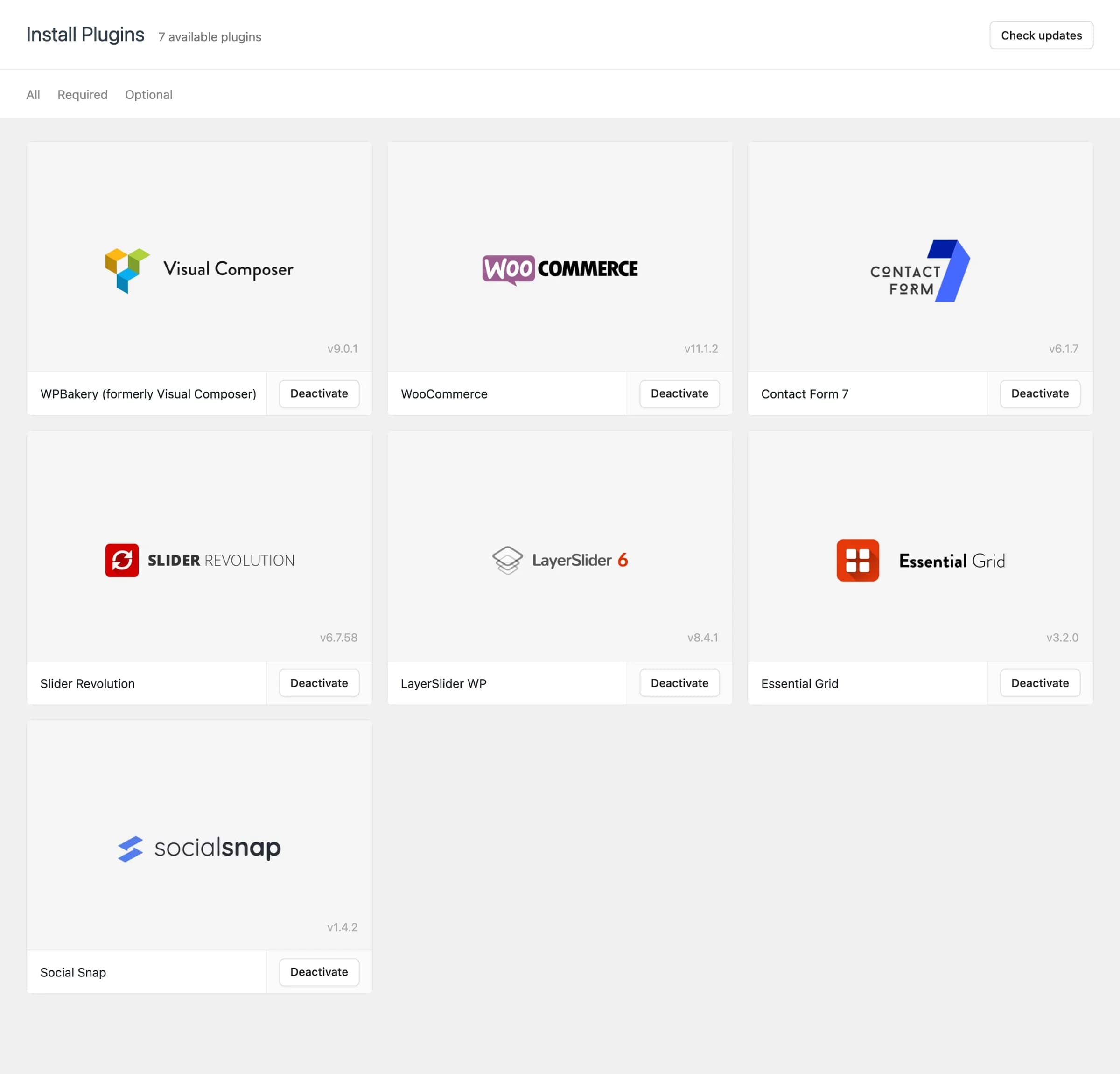 WPBakery is required. The rest are optional.
Required and recommended plugins
| Plugin | Required? | What it's for |
|---|---|---|
| WPBakery (formerly Visual Composer) | Required | The page builder every Highend element and demo layout is built with. |
| WooCommerce | Optional | Turns your site into an online store: products, cart, and checkout. |
| Contact Form 7 | Optional | Build and manage contact forms. |
| Slider Revolution | Optional | A slider builder used by some of the prebuilt demos. |
| LayerSlider WP | Optional | Another slider builder, used by other demos. |
| Essential Grid | Optional | Grid and gallery layouts for portfolio- and image-heavy demos. |
| Social Snap | Optional | Adds social sharing buttons to your content. |
You only need the plugins a demo or feature actually uses. If you're not importing a demo that uses Slider Revolution, for example, you can skip it.
WPBakery, Slider Revolution, LayerSlider, and Essential Grid come with your Highend license, so you don't need to buy separate licenses for them. Installing and updating them from this page just needs your Highend license to be active. Activate it first on the Theme License page, or the Install button shows Invalid license instead.
Buying a license directly from a plugin's developer is optional; it only unlocks extras such as the plugin's own template library.
Install and activate a plugin
Open Install Plugins
Go to HighendInstall Plugins. Use the All, Required, or Optional tabs to filter the list.
Install it
Click Install plugin on a plugin's card. Highend downloads and installs it in the background. WooCommerce, Contact Form 7, and Social Snap come from WordPress.org; the others are bundled with the theme.
Activate it
Once installed, the button changes to Activate. Click it to switch the plugin on. From then on the card shows Deactivate, or Update when a newer version is available.
Check for updates
Click Check updates in the top-right corner to refresh the available versions. Highend caches this check, so if you just released or installed a new version elsewhere, use this button to see it immediately instead of waiting.
Reminders on other screens
If a required plugin is missing or inactive, Highend shows a notice on your other admin screens with a link back to this page. It shows a similar, dismissible notice for recommended plugins you haven't installed yet, and again when an update is available.
 Notices like this follow you until you activate your license and install what's required.