Portfolio
Create portfolio items, organize them into categories, and control how each one's single page looks.
The Portfolio post type is where you showcase projects, case studies, or work samples: each item gets its own page plus a category taxonomy for filtering.
Where to find it: Go to PortfolioAdd New Portfolio Item.
Portfolio only appears in the admin menu, and the Portfolio - Simple and Portfolio - Standard page templates only appear in the Template dropdown, while the Portfolio module is turned on in Theme Options > Modules.
Add a portfolio item
Create the item
Go to PortfolioAdd New Portfolio Item. Give it a title, a featured image, and use the content editor for the project description.
Assign a category
Use the Portfolio Categories panel in the sidebar to file the item under one or more categories: this is what powers the filter on the Portfolio - Simple and Portfolio - Standard templates and the category-based Elements.
Configure the item's settings
Below the content, the Highend Settings box holds the item's settings. Fill in the Portfolio Page and Layout tabs, described next.
Portfolio Page tab
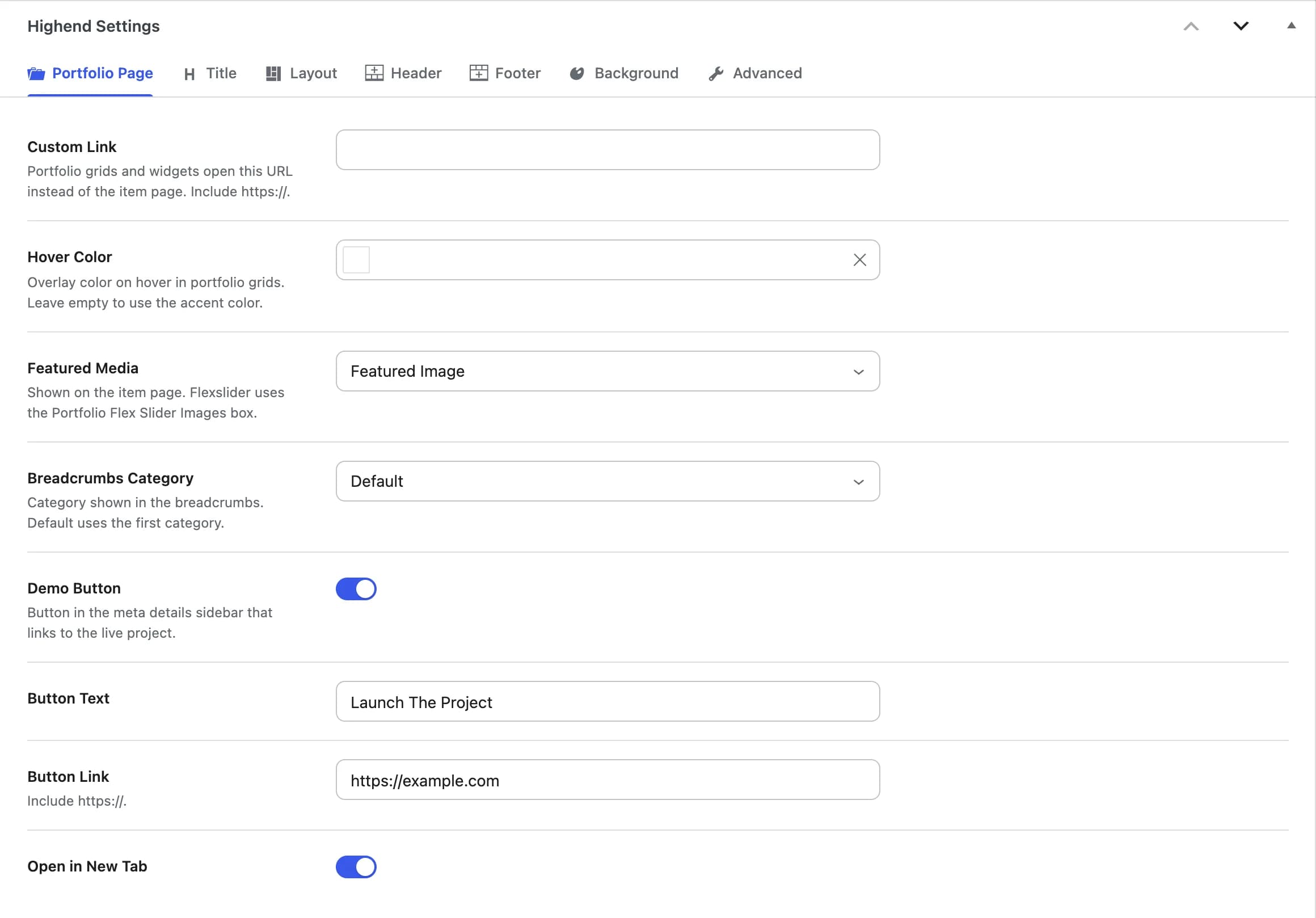
hb_portfolio_custom_urlPortfolio grids and widgets open this URL instead of the item page, useful for linking straight to a live project. Include https://. Leave empty to use the item page.
hb_portfolio_custom_bg_colorOverlay color when this item is hovered in portfolio grids. Leave empty to use the accent color.
Hidehb_featured_section_typeWhat shows at the top of the item page: Hide, Featured Image, Alternative Image, Video, Revolution Slider, or Flexslider.
hb_portfolio_alternative_imageReplaces the featured image on the item page only. Shown when Featured Media is Alternative Image.
hb_portfolio_videoA YouTube, Vimeo or other embeddable video link. Shown when Featured Media is Video.
hb_portfolio_rev_slidersShown when Featured Media is Revolution Slider.
Defaulthb_portfolio_breadcrumbsThe category shown for this item in the breadcrumbs. Default uses its first category.
Onhb_portfolio_buttonA button in the meta details sidebar that links to the live project.
Launch The Projecthb_portfolio_button_titleShown when Demo Button is on.
hb_portfolio_button_linkInclude https://. Shown when Demo Button is on.
Onhb_portfolio_button_targetShown when Demo Button is on.
The Flexslider option pulls from a separate Portfolio Flex Slider Images box further down the editor, where you upload the images for that slideshow.
Layout tab
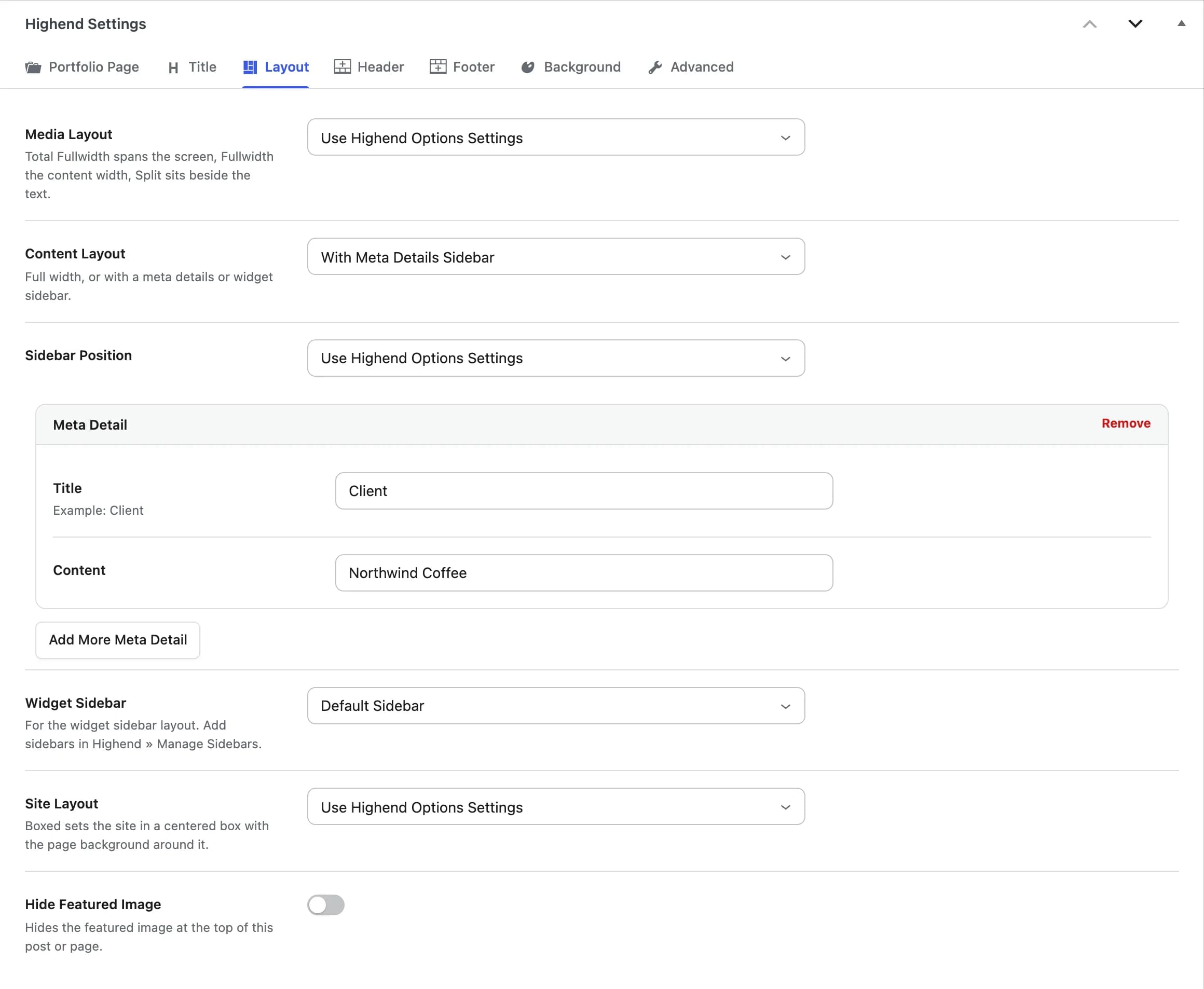
The item page layout. These fields come first in the Layout tab, followed by Site Layout and Hide Featured Image (see Page settings).
Use Highend Options Settingshb_portfolio_header_layoutTotal Fullwidth spans the screen, Fullwidth spans the content width, and Split sits beside the text.
Use Highend Options Settingshb_portfolio_content_layoutFullwidth, With Meta Details Sidebar, or With Widget Area Sidebar.
Use Highend Options Settingshb_portfolio_sidebar_positionLeft Sidebar or Right Sidebar. Shown when Content Layout is set to With Meta Details Sidebar or With Widget Area Sidebar.
hb_meta_detailsTitle and Content pairs (for example, Client) listed in the meta details sidebar. Used when Content Layout is With Meta Details Sidebar; this field stays visible in the editor either way.
Default Sidebarhb_choose_sidebarWhich sidebar to show. Used when Content Layout is With Widget Area Sidebar; this field stays visible in the editor either way. Add sidebars in HighendManage Sidebars.
Other tabs
Portfolio items also get the Title, Header, Footer, Background and Advanced tabs shared with pages and posts. See Page settings. The page Featured Section tab and the page sidebar settings don't apply here: the Portfolio Page and Layout tabs above replace them.
Single portfolio pages
A portfolio item's own page shows its featured content (image, video, or slider), the content editor body, and (depending on Content Layout) either a meta details list or a widget sidebar next to it. Below that, if Related Posts is on in Theme Options > Portfolio, Highend shows up to four more items sharing a category with the current one under Explore More Projects.
Elements that display portfolio items
Portfolio Fullwidth
An edge-to-edge grid of portfolio items with columns, category filtering, and sort order.
Portfolio Carousel
A sliding carousel of portfolio items, standard or descriptive style.
You can also list portfolio items with the Portfolio - Simple and Portfolio - Standard page templates.