The shortcode generator
Insert Highend's shortcodes by hand from the classic editor's toolbar, without WPBakery.
Alongside its WPBakery elements, Highend adds a Highend Shortcode Generator button to the classic WordPress editor toolbar. It builds the same shortcodes WPBakery's elements use, but without needing WPBakery, handy on screens WPBakery doesn't take over.
Where it appears
WPBakery replaces the whole editor for pages and posts (see WPBakery Page Builder), so this button doesn't show up there. It appears on other admin screens that still use the plain WordPress visual editor: content types like team members, FAQ items, clients, testimonials, and pricing tables. It only shows if your user profile has the visual editor enabled: the Disable the visual editor when writing checkbox, under UsersProfile, left unchecked.
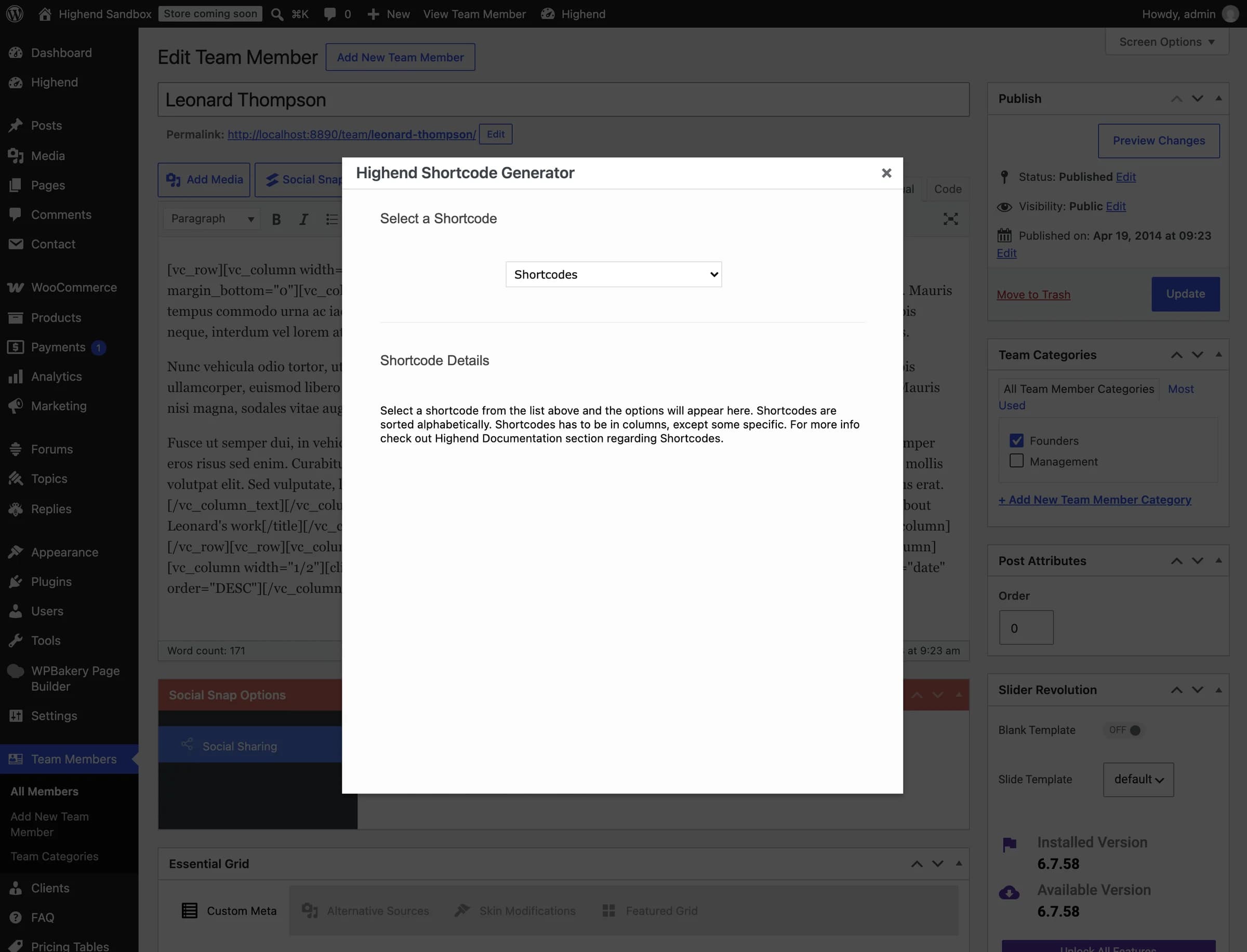 Team member content is written with shortcodes directly, since WPBakery doesn't manage this screen.
Insert a shortcode
Place your cursor
Click into the editor where you want the shortcode inserted, then click the Highend Shortcode Generator button in the toolbar.
Pick a shortcode
In the Select a Shortcode dropdown, choose one. The list is alphabetical: the same shortcode names as Highend's WPBakery elements, for example button, icon_box, or pricing_table.
Fill in its fields
Once selected, its fields load into the Shortcode Details panel below the dropdown. Fill in what you need, then click Insert to add the finished shortcode at your cursor.
Most of Highend's shortcodes are designed to sit inside a [vc_column]/[vc_row] pair to render correctly, the same as their WPBakery-element equivalents; a few, noted individually in the generator, don't need one.
Available shortcodes
Accordion, Align Center, Blog Carousel, Button, Callout Box, Circle Chart, Client Logo Carousel, Clear, Columns, Content Box, Countdown, Dropcap, FAQ Module, Full Width Section, Fullwidth Map, Gallery Carousel, Gallery Module, Map, Icon Box, Icon Feature, Icon Column, Icon, Image Banner, Image Frame, Info Message, Laptop Slider, List, Milestone Counter, Modal Window, One Page Section, Portfolio Carousel, Portfolio Module, Pricing Table, Process Steps, Skill Bar, Separator, Spacer, Simple Slider, Sitemap, Social Icons, Team Member Box, Team Members Carousel, Teaser Box, Testimonial Box, Testimonial Slider, Text Highlight, Title, Toggle, Tooltip, and Video Embed.
Most of these have a matching entry in Elements. Look there for what each one does and its full list of attributes.