Overview
A tour of the Highend Options panel, where it lives, how it's organized, and how it relates to per-page settings and the Customizer.
Highend Options is the theme's main settings panel. It controls layout, header, footer, logo, typography, colors, and every content type the theme adds (blog, portfolio, team, WooCommerce, and more) from one screen.
Where to find it: Go to HighendHighend Options.
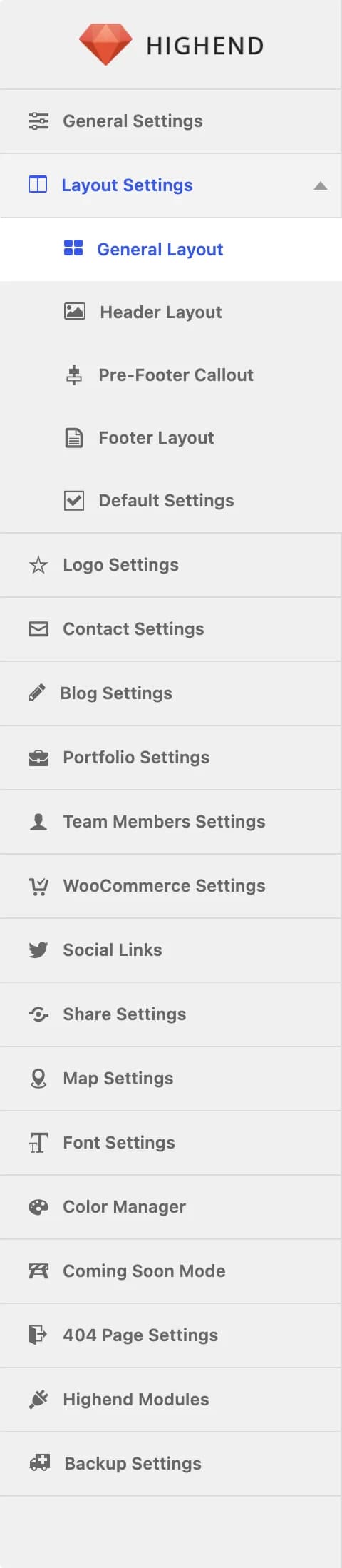 General Settings, Layout Settings, Logo Settings, and the rest of the tabs, in order.
How it's organized
The panel opens on General Settings and lists every other tab down the left side. A few tabs only appear if their module is enabled.
- General Settings: site-wide behavior: responsive design, preloader, comments, breadcrumbs, back-to-top button, pagination style, and tracking/custom code.
- Layout Settings: a group of five sub-tabs:
- General Layout: boxed vs. stretched layout and content width.
- Header Layout: top bar, main header, side navigation, and main navigation.
- Pre-Footer Callout: the site-wide call-to-action strip above the footer.
- Footer Layout: footer widgets and the copyright line.
- Default Settings: the sidebar, page title, and template defaults new pages inherit.
- Logo Settings: your default, retina, and light logo uploads.
- Contact Settings: the site-wide quick contact box shown before the footer, plus the email address your Contact page template and that box send messages to.
- Blog Settings: defaults for blog listings and single posts.
- Portfolio Settings: only shown when the Portfolio module is enabled. See Portfolio.
- Team Members Settings: only shown when the Team module is enabled. See Team.
- WooCommerce Settings: shop and product layout, shown whether or not WooCommerce is active.
- Social Links: the URLs behind every social icon the theme displays.
- Share Settings: turns individual social networks on or off for the share box shown on blog posts, portfolio items, and more.
- Map Settings: the map provider (OpenStreetMap or Google Maps), map style, and up to ten saved locations.
- Font Settings: Google Fonts and sizing for body text, navigation, and every heading level.
- Color Manager: prebuilt color schemes, or a live color customizer.
- Coming Soon Mode: a maintenance/coming-soon screen for the whole site. See Coming Soon.
- 404 Page Settings: the content shown on the default 404 template. See 404 Page.
- Highend Modules: enable or disable entire features (Portfolio, Team, Testimonials, and more). See Modules.
- Backup Settings: restore defaults or export/import your settings (see below).
Saving
There's a single Save changes button (repeated at the top and bottom of the panel) that saves every tab at once. Switching tabs only jumps you around the same page, it doesn't save or discard anything. Fields save via AJAX, so you stay on the panel after saving.
Restore, export, and import
The Backup Settings tab (last in the list) has two tools:
- Export/Import: Import takes settings text you paste in and applies it, which is the quickest way to carry your settings from a staging site to production, or between sites; Export fills a text box with your current settings that you can copy and save.
- Restore Default: resets every Highend Option back to its installed default. This can't be undone, so export your current settings first if you might want them back.
Clicking Restore defaults shows one browser confirmation dialog ("The current options will be deleted, do you want to proceed?"). Confirming resets all of your Highend Options immediately, with no further undo.
Options vs. per-page settings
Most Highend Options set a site-wide default. Many individual pages and posts have their own Highend Settings box (below the content editor) with matching fields that override that default for just that one page. For example, the Layout tab has a Sidebar Layout field with a Use Highend Options Settings choice alongside Fullwidth, Right Sidebar, and Left Sidebar. Leaving a field on its "use global settings" choice inherits whatever you set here; picking anything else overrides it for that page only. See Pages for the full reference.
Options vs. the Customizer
Highend Options and the WordPress Customizer (AppearanceCustomize) are separate systems that store settings independently. Changing one doesn't affect the other. The Customizer only covers a smaller set of appearance settings with live preview. The two are connected in one place: the Color Manager tab's Color Customizer choice has a Run Live Color Customizer button that jumps straight into the Customizer's Colors panel. See Customizer for what's available there.