Posts
Post formats and their settings, featured images, post likes, the author box, and related posts.
Blog posts get the same Highend Settings box as pages, below the content, with the Title, Layout, Header, Footer, Background and Advanced tabs described in Page settings. A Post Format tab is added for the fields of the post format you pick.
Where to find it: Go to PostsAdd New.
Most of what shapes your blog's look and behavior (the featured image, dates, author line, likes, tags, related posts, and more) is set once for the whole site in Theme Options > Blog. This page covers the parts you set on an individual post.
Post formats
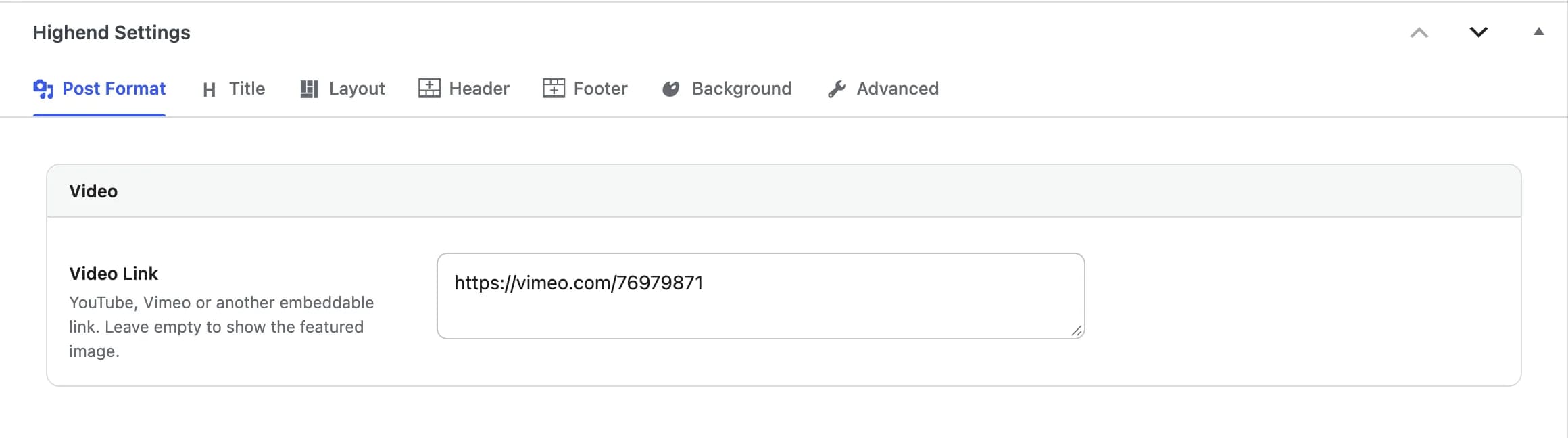
Highend supports seven post formats besides the default Standard: Image, Gallery, Video, Audio, Quote, Link, and Status. Pick one from Format in the editor's Post tab. Four of them (Video, Audio, Link and Quote) add a Post Format tab to the Highend Settings box, first in the row, and open it:
hb_video_format_linkA YouTube, Vimeo or other embeddable video link. Leave empty to show the featured image. Shown when the post format is Video.
hb_audio_soundcloud_linkA SoundCloud track URL, used instead of the audio files when set. Shown when the post format is Audio.
hb_audio_ogg_linkAn uploaded .ogg audio file. The player needs both the OGG and MP3 files.
hb_audio_mp3_linkAn uploaded .mp3 audio file. The player needs both the MP3 and OGG files.
hb_link_format_linkThe post links here, and the URL shows below its text. Shown when the post format is Link.
hb_quote_format_authorShown below the quote. The post content is the quote itself. Shown when the post format is Quote.
The Gallery format doesn't use this tab. Instead, a separate Gallery Images box appears where you upload the images for the post's slideshow. Image and Status formats use your featured image and content as-is, with no extra fields.
Featured images
Turn featured images on or off for the whole blog in Theme Options > Blog. To hide the featured image on one specific post only, turn on Hide Featured Image in the Layout tab of that post's Highend Settings box.
Post likes
When Post Likes is on in Theme Options > Blog, readers can click a heart icon to like a post. Highend counts likes in post meta and drops a browser cookie so the same visitor can't like a post twice from the same browser. No login is required. The same Post Likes setting also shows the like button on the blog list, FAQ items, gallery items, and testimonials; portfolio items use their own like toggle in Theme Options > Portfolio.
Author box
Turn on About the author box in Theme Options > Blog to show a box under each post with the author's avatar (from Gravatar), name, and bio (pulled from their Biographical Info on their WordPress user profile), plus any social links you've added to that profile.
Related posts
Turn on Related Posts in Theme Options > Blog to show up to three other posts under You also might be interested in. Highend picks them at random from posts that share at least one tag with the current post, so tagging your posts consistently is what makes this feature useful.