Browse and use icons
Find any of Highend's bundled icons and copy its name to use in elements, shortcodes, and menus.
Highend bundles two full icon sets and gives you a dedicated admin page to search them and copy the exact name any icon field expects.
Where to find it: go to HighendIcons.
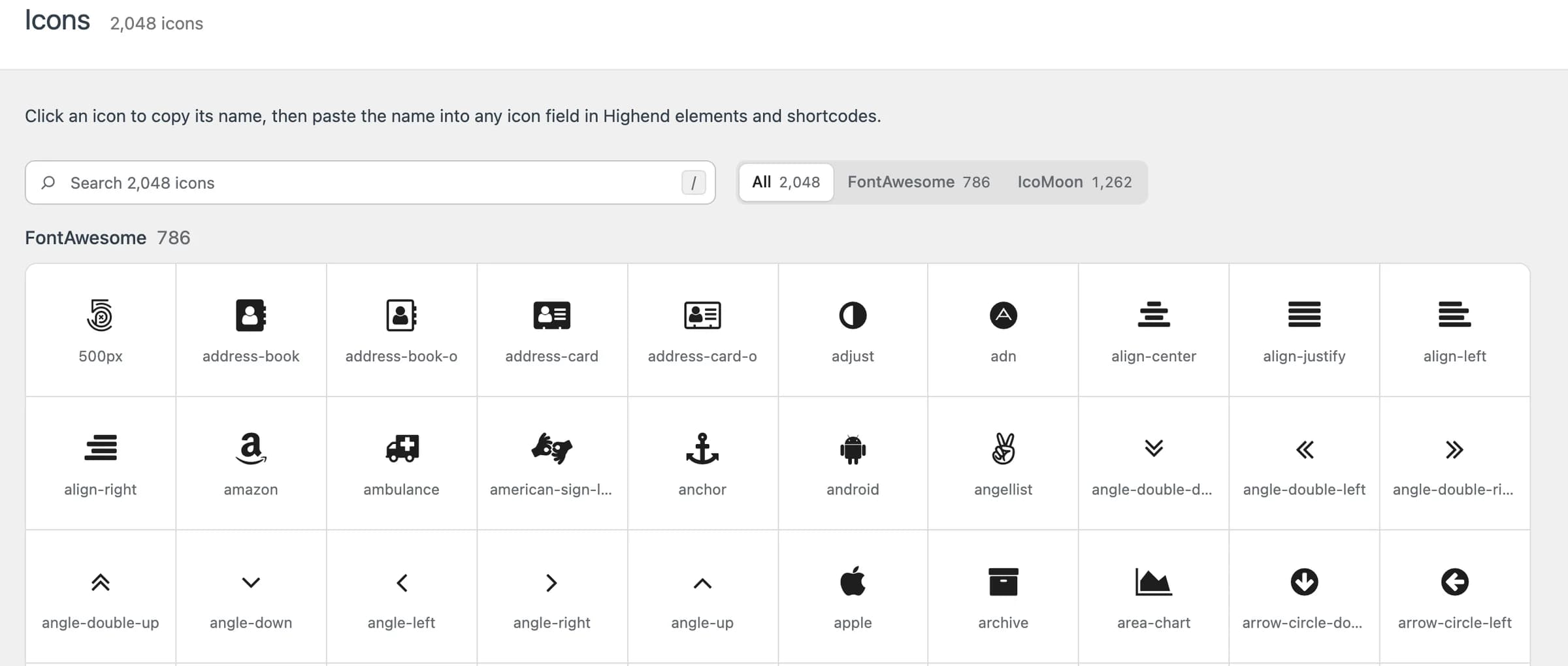
Search and copy a name
Click an icon to copy its name to your clipboard, then paste it into any icon field in Highend's elements and shortcodes. Use the search box to filter by keyword (press / anywhere on the page to jump into it), or use the All / FontAwesome / IcoMoon filter to browse one set at a time.
Icon sets
786 iconsNames are prefixed icon-, for example icon-star.
1,262 iconsNames are prefixed hb-moon-, for example hb-moon-star.
Use an icon
Paste a copied name into any element or shortcode's icon field: Icon Box, Icon Column, Icon Feature, Social Icons, and others all accept either FontAwesome or IcoMoon names. For the standalone icon element, see Icon.
Icon settings in Highend Options and in the page settings (the 404 page's background icon, the pre-footer callout and top bar buttons, and the Contact Template's contact details) have a Choose icon button. It opens a picker right below the field: search by name, filter by set, click an icon to use it, or pick Remove icon to clear the field. You can still type or paste a name into the field.
You'll also find an icon picker when editing a menu item under AppearanceMenus, under Highend Menu Options: it shows an icon before that menu item instead of requiring you to type a name.