Menus
Set up Highend's menu locations and use its per-item options for icons, mega menus, and one-page navigation.
Highend extends the standard WordPress menu editor with its own per-item options (icons, mega menus, and sub-menu alignment) and adds a dedicated location for one-page sites.
Where to find it: Go to AppearanceMenus.
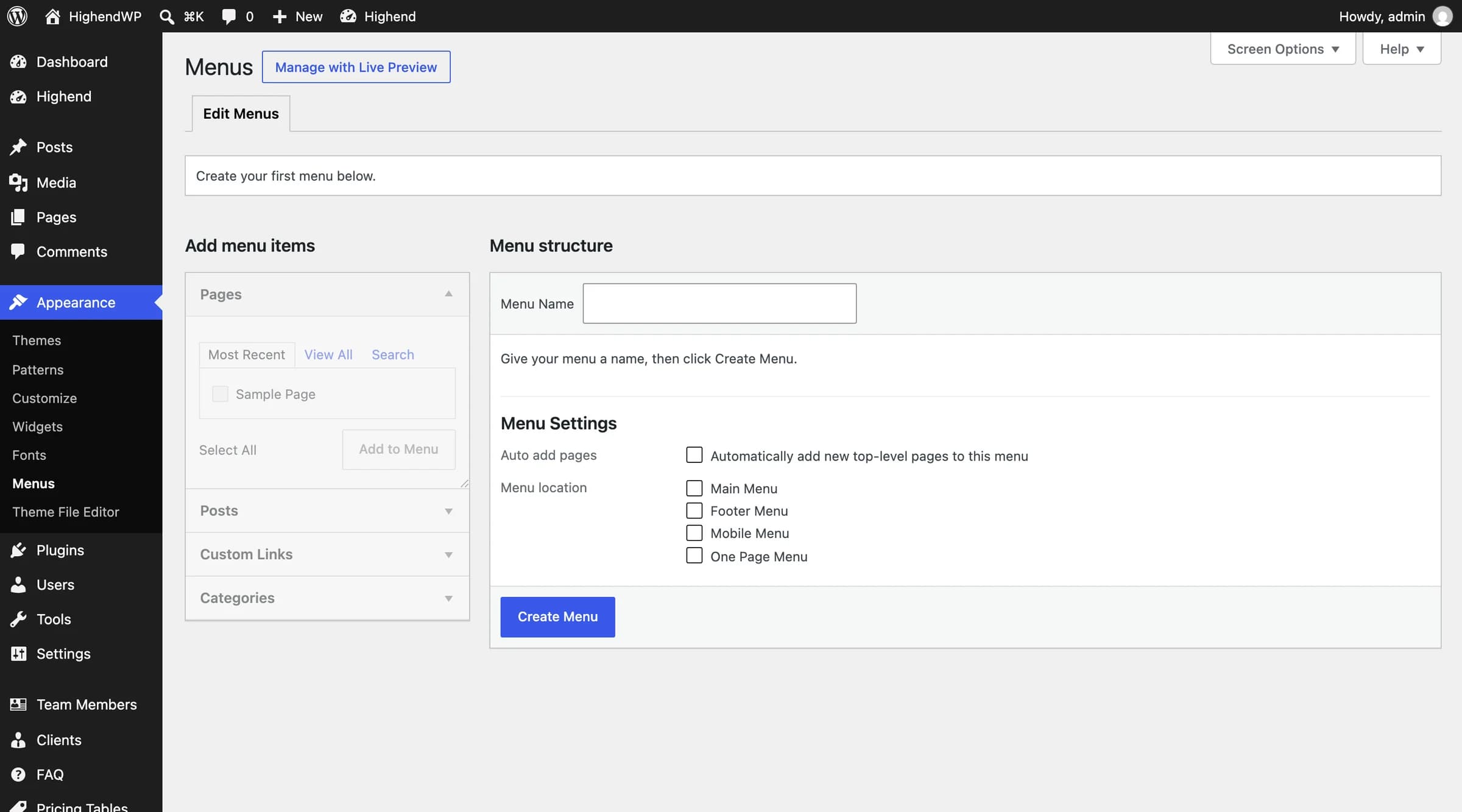 Main Menu, Footer Menu, Mobile Menu, and One Page Menu.
Menu locations
Highend registers four menu locations. Assign any menu to one or more of them under Menu Settings.
| Location | Used for |
|---|---|
| Main Menu | The primary header navigation. |
| Footer Menu | A secondary menu shown in the footer, if your footer layout includes one. |
| Mobile Menu | The menu shown in the mobile/offcanvas navigation. Falls back to the Main Menu if you don't set one. |
| One Page Menu | Used automatically on pages with One Page Elements enabled (see Link to a one-page section below). |
Highend's menu item options
Expand any menu item in the Menu structure panel and you'll see a Highend Menu Options section below the standard fields.
Choose an icon to show before the menu item's label. Opens Highend's icon picker modal.
LeftAlign this item's dropdown to the right if it would otherwise overflow the right edge of the screen. Options: Left, Right.
OffTurns this item into a mega menu: its sub-menu becomes a full-width panel instead of a regular dropdown. See Build a mega menu below.
OffShows the mega menu's column headings (the top-level sub-menu items' labels) as captions above each column.
2Number of columns to arrange the mega menu's sub-items into. Choose from 2 to 6.
An optional background image for the mega menu panel.
Stretched CenteredPosition of the mega menu background image. Options: Stretched Centered, Left Top, Left Center, Left Bottom, Center Top, Center Center, Center Bottom, Right Top, Right Center, Right Bottom.
Displays the contents of a registered widget area inside this menu item instead of a link. Lists every sidebar registered on your site, including any custom sidebars you've created.
The Menu Icon field stores an icon class, not an image. See Icons for how Highend's icon picker works and which icon sets are available.
Build a mega menu
A mega menu is a top-level menu item whose second-level items each become one column of content: either a link, or, on any single second-level item, a widget area.
Enable Mega Menu on the parent item
In Menu structure, expand the top-level item you want to turn into a mega menu and switch on Mega Menu. Set Columns to how many columns you want the sub-menu arranged into, and turn on Show Captions if you want each column's top item shown as a heading.
Add second-level items
Drag menu items (pages, custom links, categories, etc.) underneath the parent item so they become its children. Each one becomes a cell in the mega menu grid.
Optional: show a widget area instead of links
Expand a second-level item and choose a sidebar under Show Widget. That cell renders the sidebar's widgets instead of a link, useful for a "featured" column with a text or image widget. Register a custom sidebar first if you want a widget area dedicated to this menu.
Optional: set a background image
On the parent item, upload a Background Image and choose an Image Position to give the mega menu panel a background.
Link to a one-page section
On a page with One Page turned on (in the Header tab of the page's Highend Settings box), give each WPBakery row a unique Section ID on the row's One Page Section settings tab (see Build a one-page site). The older One Page Section element works the same way but is deprecated in WPBakery. To link a menu item to one of those sections, set its URL to # followed by that section ID, for example #first-page for a section whose ID is first-page.
When a page has One Page turned on, Highend automatically shows the One Page Menu location instead of the Main Menu on that page (and also adds a small dot/circle navigation before the footer, unless Hide Main Menu is on for that page).
Turning on One Page doesn't remove the page's sidebar. Set Sidebar Layout to Fullwidth in the page's Layout tab so sections can scroll edge to edge.