Pricing Table
Displays the pricing columns from a Pricing Table entry, in a choice of layouts.
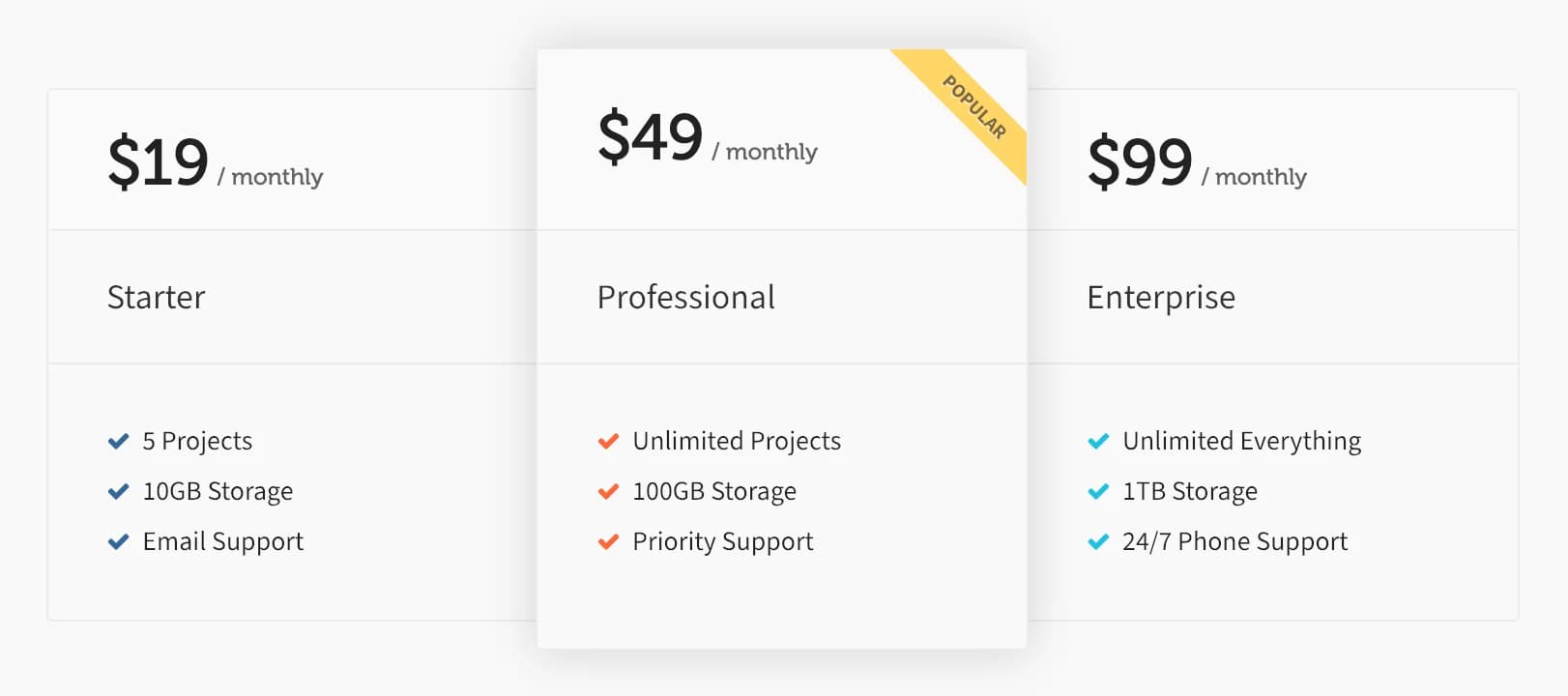
Pricing Table displays the columns you've built in a Pricing Tables entry; it doesn't hold any pricing content itself, it just picks which entry to show and how to lay it out.
Add it
In WPBakery, click Add Element and pick Pricing Table from the Highend Shortcodes category. Or use the shortcode. See Shortcode.
Pricing Table needs the Custom Post Type: Pricing Tables module. It's on by default; check under HighendHighend OptionsHighend Modules. With it off, the element and its shortcode are removed entirely.
How it pulls its content
Before adding this element, create the plans it will show: go to Pricing TablesAdd Pricing Table and add one Pricing Table Column per plan (title, price, period, color accent, an optional featured ribbon, and a feature list). One Pricing Tables entry can hold several columns; the shortcode renders all of them side by side. See Pricing Tables for how to build the entry itself.
Settings
Nonepricing_itemWhich Pricing Tables entry to display. The dropdown lists every published entry by title, plus None.
StandardstyleOptions: Standard, Colored. Colored tints each column's price and title bar with that plan's own Accent Color field; Standard ignores it.
3columnsHow many columns wide to lay out the plans, from 1 to 6. This only changes the layout. It doesn't limit or filter which columns from the entry appear; all of them render regardless of this value.
Common settings
Pricing Table also has Entrance Animation, Entrance Delay, and Extra class name fields. See the Elements overview.
Shortcode
[pricing_table pricing_item="642" style="standard" columns="3"]pricing_item is the ID of the Pricing Tables post. If you omit columns, the shortcode itself defaults to a single column rather than the 3 WPBakery pre-fills; always set it explicitly.